

Sharing and Collaboration
Last updated: 2026-08-19
Share your recipes with friends, family, or the world. Collaborate on recipe books and cook together in real-time.
Sharing Recipes
Share any recipe with others, whether they use momoChef or not.
Sharing Options
From any recipe page, click Share to see your options:
- Copy Link: Get a shareable URL
- Send to Friend: Share directly with momoChef users
- Share Publicly: Add to community discovery
- Export: Download as PDF or other formats
Public Share Links
Create a link that anyone can view:
- Click Share on a recipe
- Select Copy Link
- Share the link anywhere - email, text, social media
- Recipients can view the recipe without logging in
Managing Share Links
Control your shared content:
- Regenerate: Create a new link (old link stops working)
- Disable: Turn off public access
- Set Expiration: Link stops working after a date
- Password Protect: Require a password to view
Sharing to Social Media
Share recipes directly to:
- Twitter/X
Tip: When sharing family recipes, consider adding a password to keep them semi-private while still accessible to relatives.
Collaborative Recipe Books
Create shared recipe books where multiple people can add and edit recipes.
Creating a Shared Book
- Go to Recipes in the sidebar
- Click New Book
- Enter a name and description
- Under Sharing, select Shared Book
- Click Create
Shared Book Features
- Multiple Contributors: Invite friends and family to add recipes
- Real-time Sync: Changes appear instantly for everyone
- Activity History: See who added or edited recipes
- Comments: Discuss recipes within the book
Use Cases for Shared Books
- Family Cookbook: Collect generations of family recipes
- Recipe Swap: Exchange favorites with friends
- Meal Prep Group: Share meal prep recipes with roommates
- Cooking Club: Build a collection with your cooking group
- Event Planning: Collect recipes for potlucks and parties
Converting Existing Books
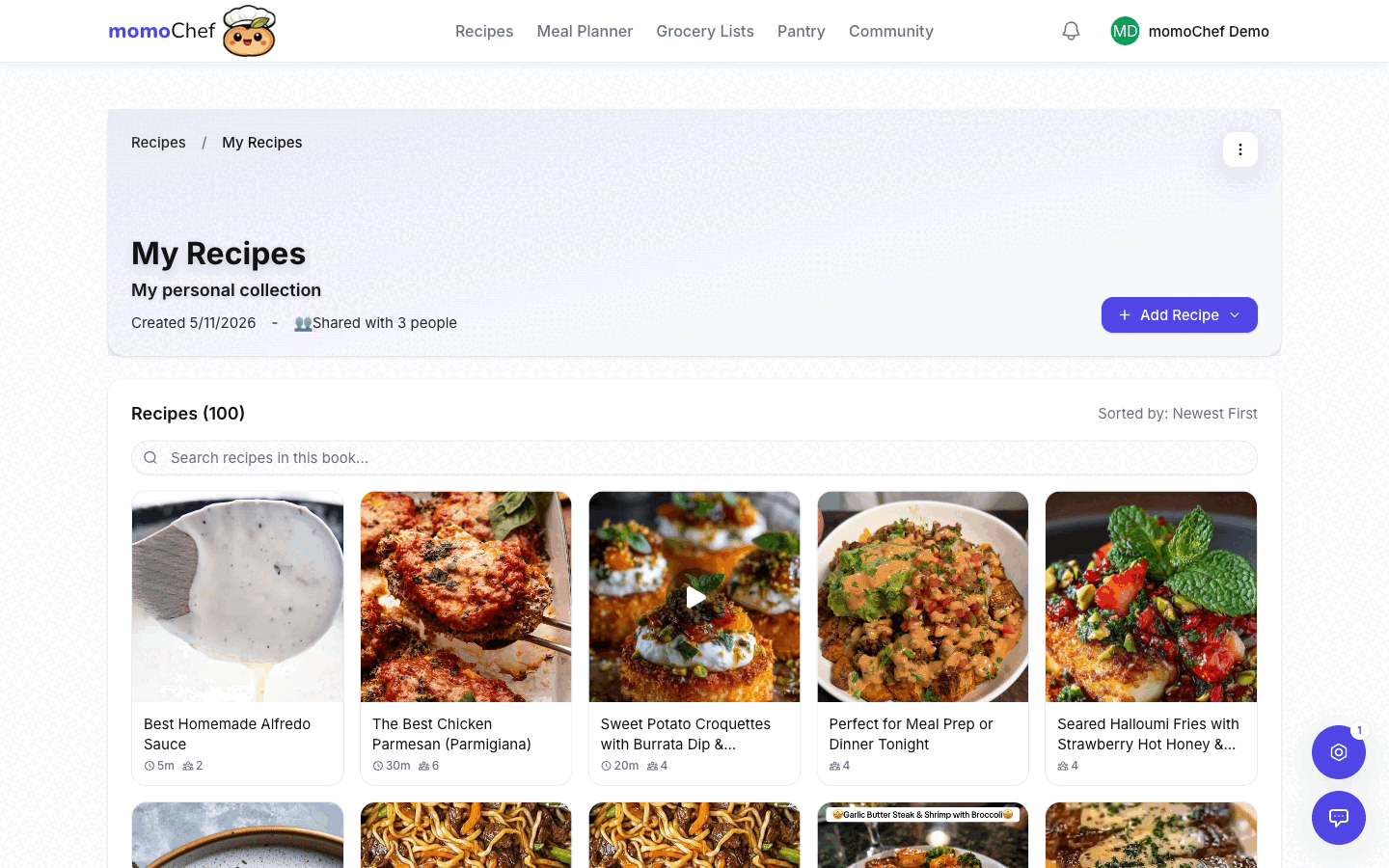
Already have a personal book you want to share?
- Open the book
- Click Settings
- Change from Personal to Shared
- Invite collaborators
Inviting Collaborators
Add people to your shared recipe books so they can contribute.
Sending Invitations
- Open your shared recipe book
- Click Invite or Manage Members
- Enter email addresses or select from your contacts
- Choose their permission level
- Add an optional message
- Send the invitation
Invitation Methods
- Email: Recipients get an email with a join link
- Share Link: Generate a link anyone can use to join
- momoChef Username: Send directly if they are already on momoChef
Accepting Invitations
When you receive an invitation:
- You will get a notification in the app
- Click Accept to join the book
- The book appears in your Recipes section
Pending Invitations
Manage sent invitations:
- View pending invitations in book settings
- Resend or cancel invitations
- See when invitations expire
Permission Levels
Control what each collaborator can do with permission levels.
Available Permissions
Viewer
Can only view recipes in the book:
- View all recipes
- Cannot add, edit, or delete recipes
- Cannot invite others
Contributor
Can add recipes but not manage the book:
- View all recipes
- Add new recipes
- Edit their own recipes
- Cannot edit others' recipes
- Cannot invite members or change settings
Editor
Full editing access to recipes:
- View, add, and edit all recipes
- Delete recipes
- Cannot manage members or delete the book
Admin
Full control over the book:
- Everything editors can do
- Invite and remove members
- Change member permissions
- Change book settings
- Delete the book
Changing Permissions
- Open the shared book
- Click Manage Members
- Find the member you want to update
- Click their current permission level
- Select a new level
Removing Collaborators
- Go to Manage Members
- Find the member to remove
- Click Remove
- They lose access immediately
Tip: For family cookbooks, make everyone an Editor so anyone can update recipes. Reserve Admin for those who should manage membership.
Collaborative Cooking (Premium)
Cook together in real-time with friends and family, even from different locations. This is a Premium feature.
Starting a Cooking Session
- Open any recipe
- Click Start Cooking to enter cooking mode
- Click Share Session
- Share the session code or link with others
- Everyone joins the same cooking session
Shared Session Features
- Synced Progress: Everyone sees the same step
- Timers: Start a timer and everyone sees it
- Step Check-off: Mark steps complete for everyone
- Built-in Chat: Communicate while cooking
- Voice Chat: Talk hands-free while cooking
Use Cases
- Long-distance Cooking: Cook together with family in different cities
- Teaching: Walk someone through a recipe remotely
- Party Prep: Coordinate cooking with multiple people in the same kitchen
See the Cooking Mode guide for more details.
Friends and Messaging
Connect with other cooks and send recipes directly.
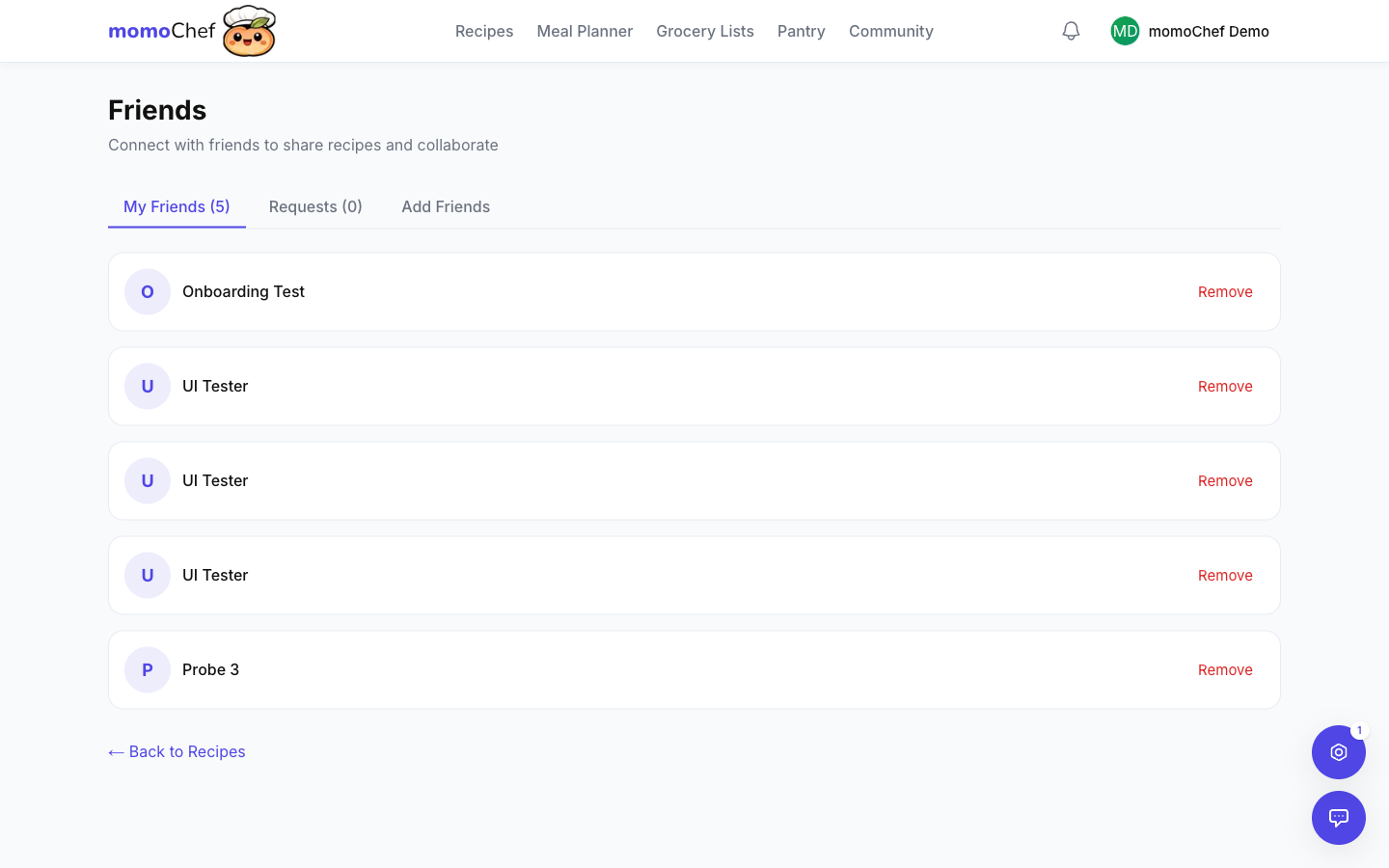
Adding Friends
- Go to Community > Friends
- Search by username or email
- Click Add Friend
- They will receive a friend request
Sending Messages
- Go to Messages in the sidebar
- Click New Message
- Select a friend or type their name
- Type your message or share a recipe
Sharing Recipes via Message
- Open any recipe
- Click Share
- Select Send to Friend
- Choose the recipient
- Add a message and send
Community Groups
Join or create groups around shared cooking interests.
What are Groups?
Groups are communities within momoChef focused on specific topics:
- Cooking styles (Instant Pot, Air Fryer, Sous Vide)
- Dietary preferences (Keto, Vegetarian, Whole30)
- Cuisines (Italian Cooking, Asian Fusion)
- Local communities (NYC Home Cooks, London Foodies)
Joining a Group
- Go to Community > Groups
- Browse public groups or search for topics
- Click Join on any public group
Creating a Group
- Go to Community > Groups
- Click Create Group
- Enter a name, description, and category
- Choose public or private
- Invite members to join
See the Community guide for more details.
Privacy First
Your privacy is important. Here is how we protect it:
You Control Who Sees What
Your recipes are private by default. Only share when you choose to.
Revoke Access Anytime
Disable sharing, remove collaborators, or delete public links instantly.
Profile Visibility Settings
Control whether your profile is public, semi-private, or completely private in your account settings.
Sharing Outside momoChef
Share recipes with people who don't use momoChef.
Export Formats
Export recipes in various formats:
- PDF: Beautiful printable format
- Email: Send directly to any email address
- Text: Plain text copy-paste
- JSON: For importing into other apps
Printing Recipes
- Open a recipe
- Click Share > Print
- Choose print options (serving size, include photo)
- Print or save as PDF
Recipe Cards
Create beautiful recipe cards for gifting:
- Choose from multiple card designs
- Add a personal note
- Print on cardstock for a physical gift
Related Topics
- Community Features - Share publicly and connect with others
- Cooking Mode - Cook recipes with step-by-step guidance
- Recipe Management - Create and organize recipes