

Offline Mode
Last updated: 2026-08-19
Access your recipes anywhere, anytime. The iOS app stores everything locally so you can cook without an internet connection.
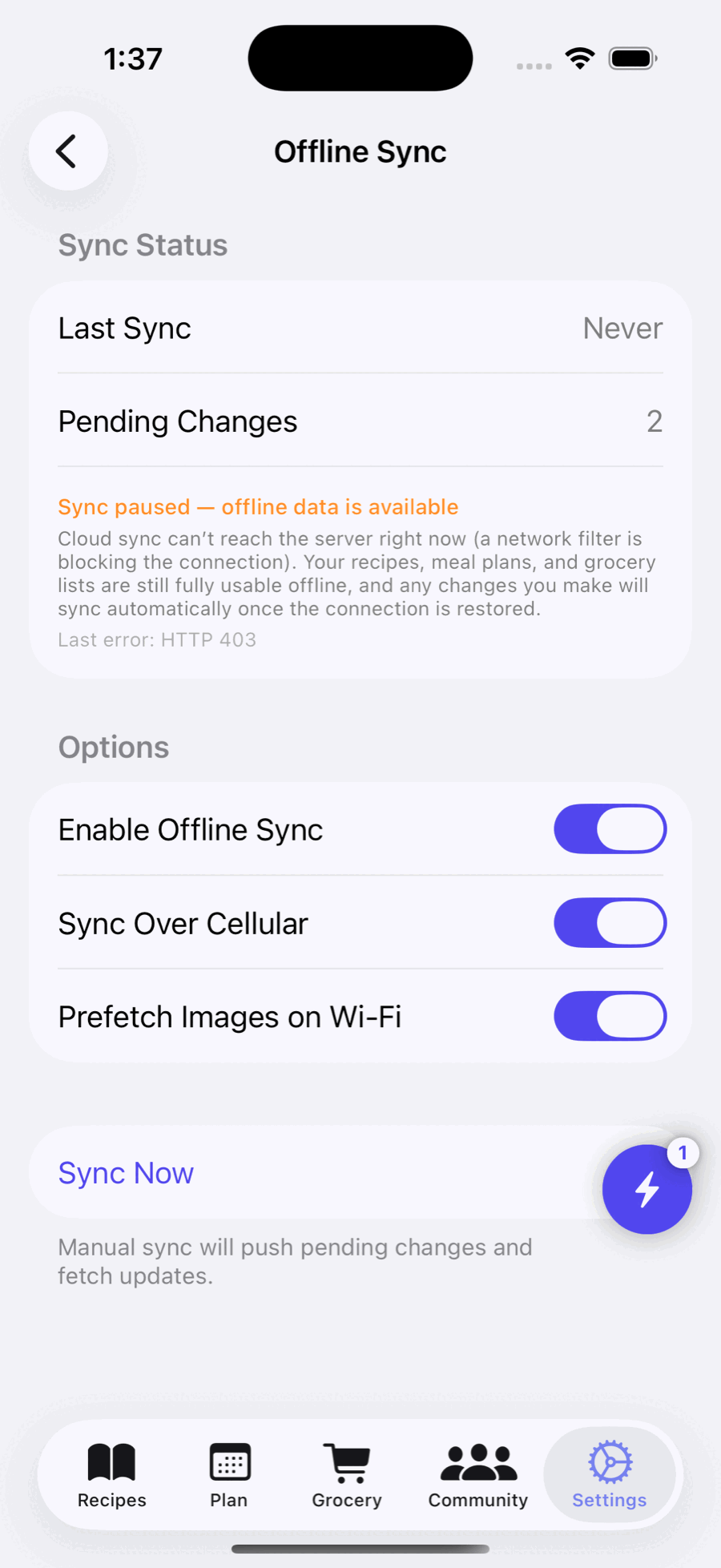
How Offline Mode Works
The iOS app uses Core Data to store a complete copy of your recipes, meal plans, and grocery lists on your device. This means everything works even when you have no internet connection. Changes sync automatically when you reconnect.
Features
Full Offline Access
Your entire recipe collection available without internet.
- Recipes stored locally on your device using Core Data
- Access recipes, meal plans, and grocery lists offline
- No WiFi needed in the kitchen
- Perfect for cooking in areas with poor connectivity
Automatic Sync
Changes sync when you reconnect.
- Sync happens automatically when internet is available
- Background sync keeps data up to date
- Visual indicators show sync status
- Manual sync available by pulling to refresh
Conflict Resolution
Smart handling of edits from multiple devices.
- Detects when changes were made on multiple devices
- Intelligent merge of conflicting changes
- Most recent changes take precedence when needed
- Never lose data due to sync conflicts
Local Search
Find recipes even without internet.
- Search through all your locally stored recipes
- Search by title, ingredients, and tags
- Instant results without network latency
- Filter by recipe book or dietary restrictions
Sync Flow
- Initial Sync — When you first log in, recipes are downloaded to your device
- Offline Use — Use the app normally without internet; everything works
- Local Changes — Any edits you make are saved locally
- Auto Sync — When you reconnect, changes sync to the server automatically
Tips for Best Offline Experience
- Sync before going offline: Open the app with WiFi to ensure everything is up to date.
- Pull to refresh: When reconnecting, pull down on any screen to force a sync.
- Check sync status: Look for the sync indicator to confirm your changes are saved.
- Multiple devices: Changes sync across all your iOS devices automatically.