

Meal Planning
Last updated: 2026-08-19
Plan your meals for the week or month with momoChef's intuitive meal planner. Never wonder "what's for dinner?" again.
Calendar View Overview
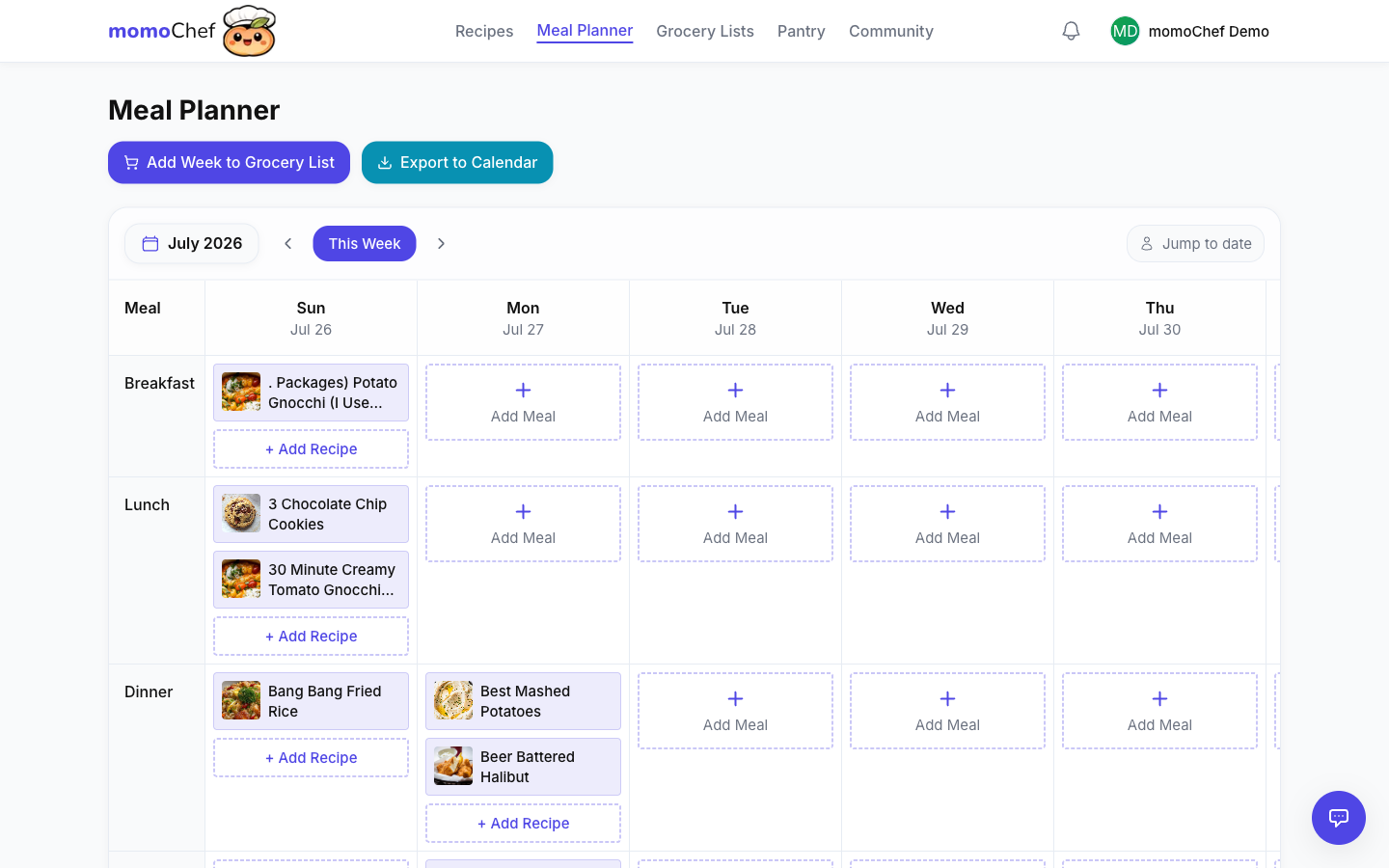
The meal planning calendar gives you a visual overview of your meals. Access it by clicking Meal Plans in the sidebar.
Calendar Layout
The calendar displays one week at a time by default:
- Columns: Each day of the week
- Rows: Breakfast, Lunch, Dinner, and Snacks
- Recipe Cards: Shows the recipe name, photo, and prep time
Navigation
- Use the arrow buttons to navigate between weeks
- Click Today to jump to the current week
- Use the date picker to jump to a specific date
- Toggle between Week and Month view
Color-Code Meals
Assign a color to any meal to spot what's on the menu at a glance — by cuisine, prep effort, or whoever's cooking.
- When adding a meal, pick from the color swatches (or skip for no color)
- Colors show up as an accent on each meal card in the calendar
- Change or clear a color anytime from the meal card
Tip: Use colors to group meals your way — for example, green for salads, amber for quick breakfasts, or coral for weekend treats.
Adding Meals
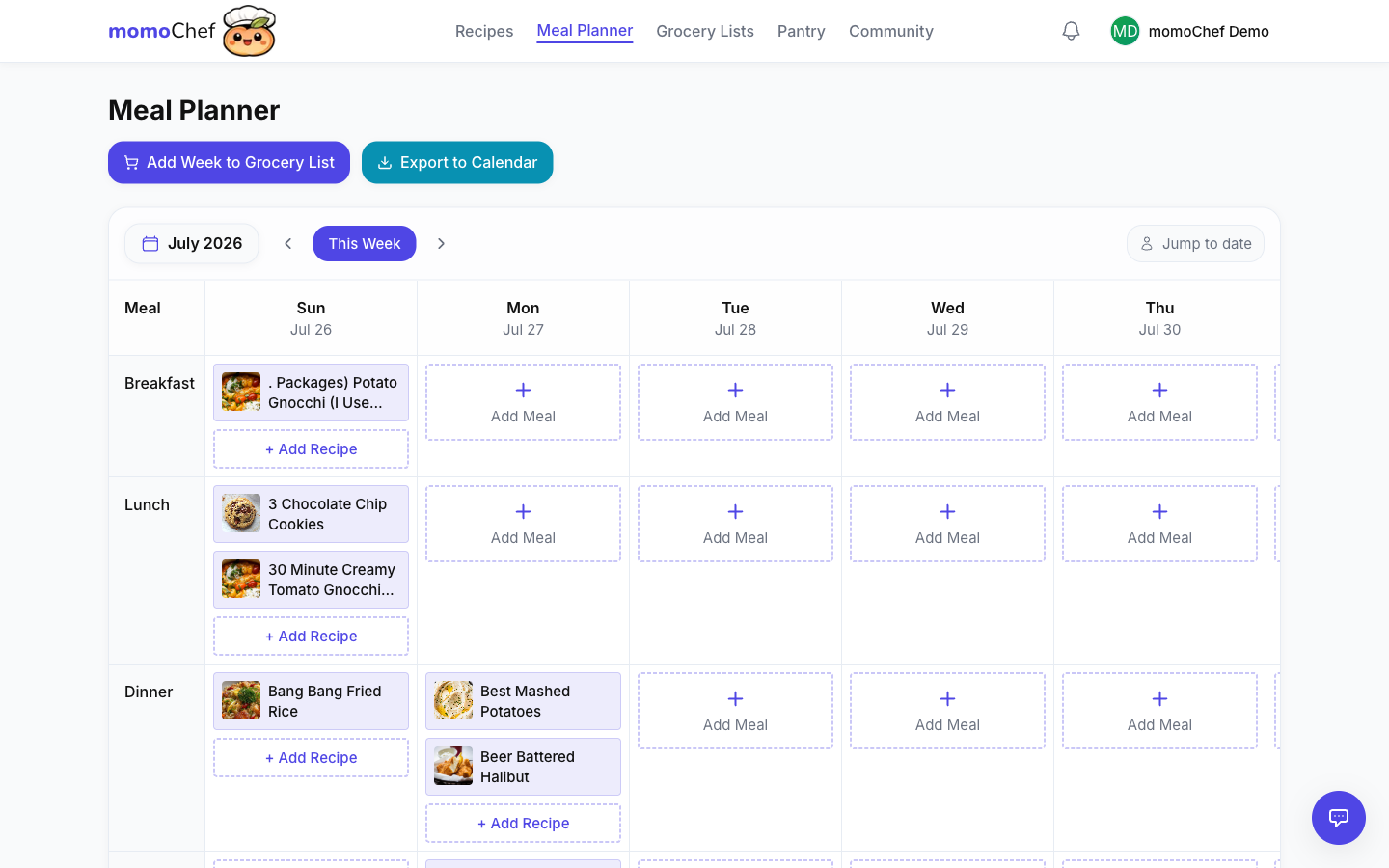
There are several ways to add recipes to your meal plan.
Click to Add
- Click on any empty meal slot on the calendar
- A recipe picker will appear
- Search for a recipe or browse your recipe books
- Click on a recipe to add it
Drag and Drop
- Open the recipe picker by clicking Add Recipe
- Drag a recipe from the picker onto any meal slot
- The recipe will be added to that slot
From Recipe Page
- Open any recipe
- Click Add to Meal Plan
- Select the date and meal type
- The recipe is added to your plan
Adding Leftovers
Mark a meal as leftovers to indicate you're having something from a previous meal:
- Click on a meal slot
- Select Mark as Leftovers
- Optionally link it to the original meal
Adding Notes
Add notes to meal slots for non-recipe meals:
- Click on a meal slot
- Select Add Note
- Enter text like "Eating out" or "Ordering pizza"
Drag and Drop Scheduling
Easily reorganize your meal plan by dragging recipes between slots.
Moving Meals
- Click and hold on a recipe card
- Drag it to a new slot on the calendar
- Release to drop it in place
- The original slot becomes empty
Swapping Meals
- Drag a recipe onto another recipe
- The two recipes will swap positions
Copying Meals
- Hold Option (Mac) or Alt (Windows) while dragging
- The recipe will be copied instead of moved
- Great for scheduling leftovers or repeated meals
Removing Meals
- Drag a recipe off the calendar
- Or click the X on the recipe card
- Or right-click and select Remove
Tip: Plan leftovers efficiently by copying dinner to the next day's lunch slot.
Recurring Meals (Premium)
Set up recurring meal patterns to automate your planning. This is a Premium feature.
Creating a Recurring Meal
- Add a recipe to a meal slot
- Click the Repeat icon on the recipe card
- Choose how often to repeat:
- Weekly: Same day each week (e.g., every Tuesday)
- Bi-weekly: Every two weeks
- Monthly: Same date each month
- Set an end date or number of occurrences
- Click Save
Recurring Meal Ideas
- Taco Tuesday: Set up weekly tacos
- Pizza Friday: Weekly homemade pizza night
- Meal Prep Sunday: Batch cooking session
- Date Night: Special dinner every other Saturday
Managing Recurring Meals
Recurring meals are indicated by a repeat icon. To modify:
- Click on the meal to see the recurrence settings
- Edit the current occurrence only, or all future occurrences
- Delete a single occurrence or the entire series
Calendar Export
Export your meal plan to your favorite calendar app for easy access.
Export Options
- iCal/ICS: Works with Apple Calendar, Google Calendar, Outlook, and more
- Google Calendar: Direct export to Google Calendar
- Share Link: Create a read-only link to share with family
Exporting to iCal
- Click the Export button in the meal plan toolbar
- Select Export to Calendar (iCal)
- Choose the date range to export
- Download the .ics file or copy the subscription URL
- Import into your calendar app
Subscribe to Meal Plan
For automatic updates, use the subscription URL:
- Copy the subscription URL from the export menu
- In your calendar app, add a new subscription calendar
- Paste the URL
- Your calendar will automatically update when you change your meal plan
Calendar Event Details
Exported events include:
- Recipe name as the event title
- Meal time (if set) or all-day
- Recipe link in the event description
- Prep and cook time information
AI Meal Suggestions
Get smart meal suggestions powered by AI to help plan your week.
Accessing AI Suggestions
- Click the AI Suggest button in the meal plan toolbar
- Choose what you want help with:
- Fill empty slots for the week
- Suggest meals for a specific day
- Plan based on what's in your pantry
- Review the suggestions
- Click to add any suggestion to your plan
How Suggestions Work
The AI considers several factors when making suggestions:
- Your preferences: Dietary restrictions, cuisine preferences
- Seasonality: Appropriate meals for the time of year
- Variety: Avoids repeating the same meals
- Balance: Mix of quick meals and more involved cooking
- Your history: Recipes you've enjoyed before
Customizing Suggestions
Provide additional context for better suggestions:
- "I need quick dinners under 30 minutes"
- "Looking for vegetarian options"
- "I have chicken and broccoli to use up"
- "Something kid-friendly for tonight"
Tip: The more you use momoChef, the better the AI suggestions become as it learns your preferences.
Nutrition Tracking
Track calories and macros for your planned meals.
Setting Nutrition Goals
- Go to Settings > Nutrition Goals
- Set your daily calorie target
- Set macro targets (protein, carbs, fat)
- Goals appear as a progress bar in your meal plan
Viewing Daily Totals
See nutrition totals for each day:
- Calories and macros for all planned meals
- Progress toward your daily goals
- Breakdown by meal
Meal Plan Templates (Premium)
Save and reuse meal plan layouts.
Creating a Template
- Plan out a week of meals
- Click Save as Template
- Give your template a name
- The template is saved for future use
Using a Template
- Click Apply Template
- Choose from your saved templates
- The template fills in your meal slots
- Customize as needed
Adding to Grocery List
Generate a grocery list from your meal plan with one click.
Creating a Grocery List
- In your meal plan, click Add to Grocery List
- Select the date range (e.g., this week)
- Choose which meal types to include
- Review the consolidated ingredient list
- Add to an existing list or create a new one
Smart Consolidation
When multiple recipes use the same ingredient, momoChef:
- Combines quantities automatically (2 cups + 1 cup = 3 cups)
- Converts units for easier shopping
- Groups items by grocery store aisle
See the Grocery Lists guide for more details.
Meal Planning Tips
- Plan with sales in mind: Check grocery store flyers before planning to take advantage of deals.
- Cook once, eat twice: Plan for leftovers. Double recipes that reheat well for lunch the next day.
- Theme nights: Taco Tuesday, Pasta Thursday - themes reduce decision fatigue.
- Keep backups: Always have a few quick 15-minute meals for busy days.
- Prep ahead: Schedule prep time for ingredients you can prepare in advance.
Related Topics
- Grocery Lists - Create and manage shopping lists
- Recipe Management - Organize your recipe collection
- AI Assistant - Get help with meal planning