

Account & Settings
Last updated: 2026-08-19
Manage your momoChef account, subscription, preferences, and data. Everything you need to customize your experience.
Profile Management
Your profile is how others see you in the momoChef community. Customize it to share your cooking personality.
Editing Your Profile
- Click on your avatar in the top right corner
- Select Profile
- Click Edit Profile
Profile Information
Customize these profile details:
- Display Name: How your name appears to others
- Username: Your unique @handle
- Bio: A short description of yourself
- Location: Where you're cooking from
- Website: Link to your blog or social media
- Avatar: Your profile picture
Privacy Settings
Control what others can see:
- Public Profile: Allow others to view your profile
- Show Activity: Display your recent recipes and activity
- Show Following: Let others see who you follow
Profile Statistics
Your profile shows:
- Number of recipes created
- Number of public recipe books
- Followers and following counts
- Member since date
Tip: Add a bio that mentions your cooking style or favorite cuisines to connect with like-minded cooks.
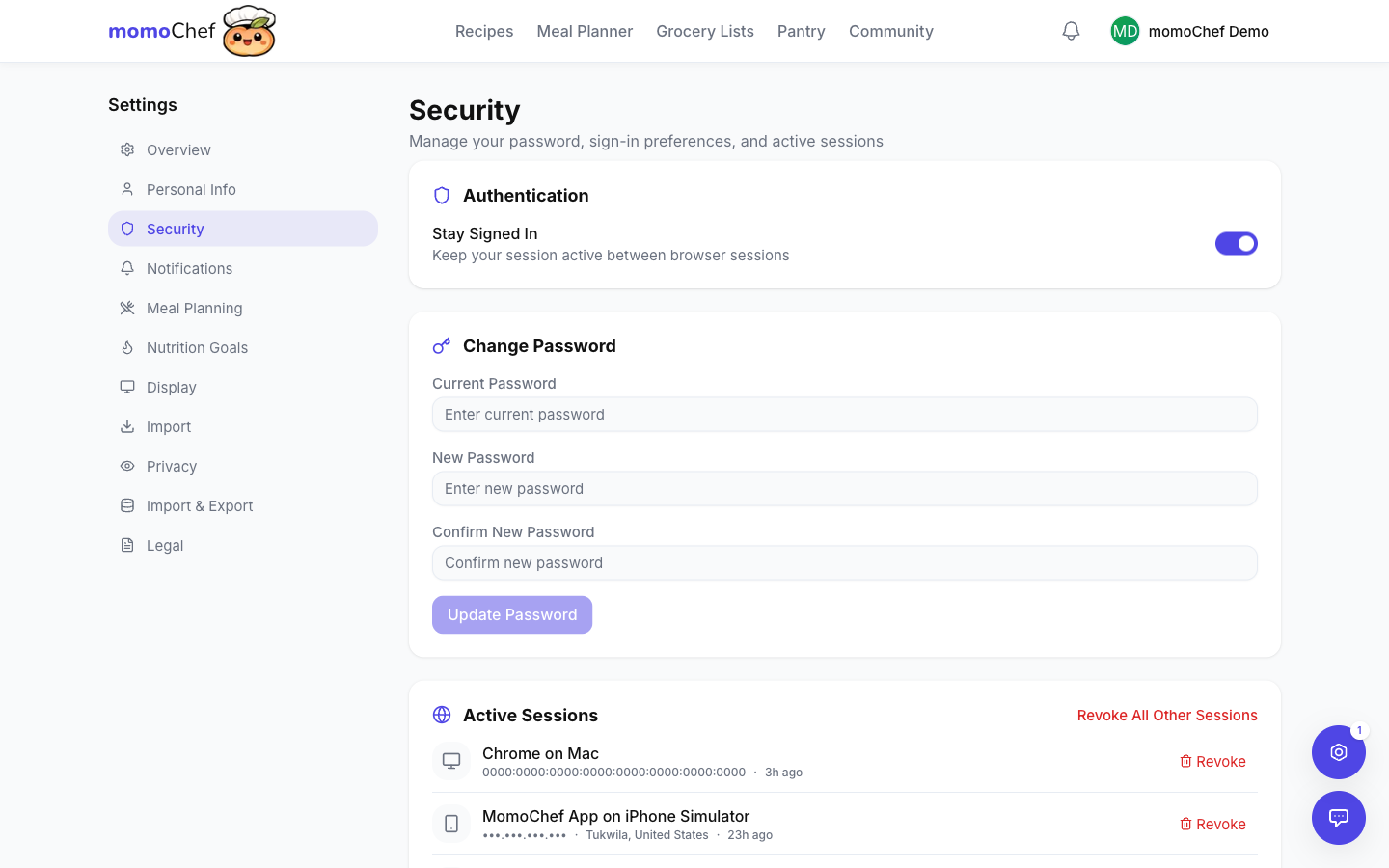
Password Change
Keep your account secure by using a strong, unique password.
Changing Your Password
- Go to Settings > Security
- Click Change Password
- Enter your current password
- Enter your new password twice
- Click Update Password
Password Requirements
Your password must:
- Be at least 8 characters long
- Include at least one number
- Include at least one special character
- Not be a commonly used password
Forgot Password
If you can't log in:
- Click Forgot Password on the login page
- Enter your email address
- Check your email for a reset link
- Click the link and create a new password
Two-Factor Authentication
Add an extra layer of security:
- Go to Settings > Security
- Click Enable 2FA
- Scan the QR code with your authenticator app
- Enter the verification code
- Save your backup codes in a safe place
Subscription Management
Manage your momoChef subscription, upgrade to Premium, or cancel your plan.
Viewing Your Plan
- Go to Settings > Subscription
- See your current plan and billing cycle
- View your next billing date
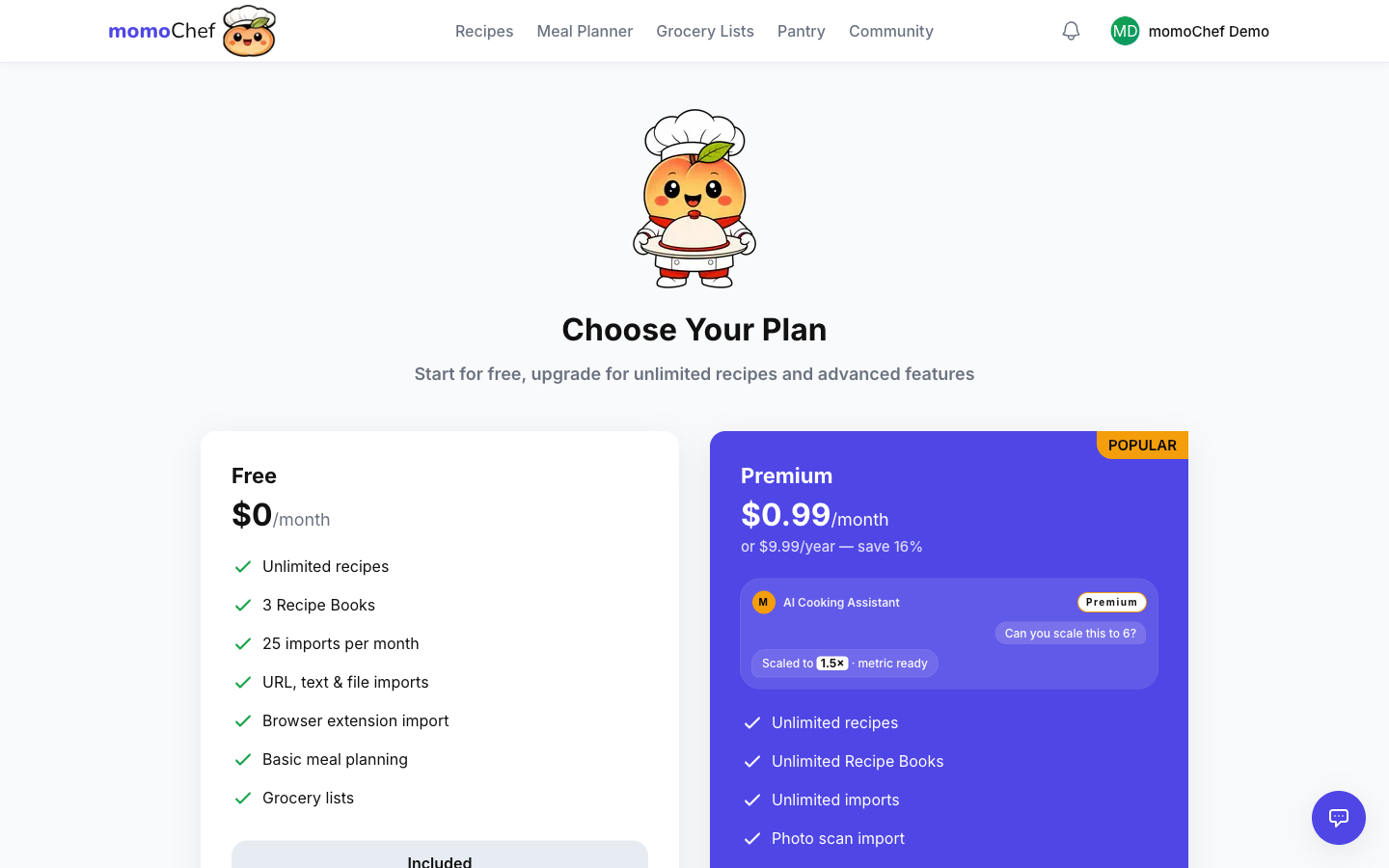
Free vs. Premium
Free Plan includes:
- Unlimited personal recipes
- Basic meal planning
- Up to 3 grocery lists
- URL recipe import
- Community features
Premium Plan adds:
- Photo and OCR recipe import
- AI-powered features
- Advanced meal planning with recurring meals
- Unlimited grocery lists
- Nutrition analysis
- Priority support
- No ads
Upgrading to Premium
- Go to Settings > Subscription
- Click Upgrade to Premium
- Choose monthly or annual billing
- Enter payment information
- Confirm your upgrade
Managing Payment Methods
- Add, update, or remove payment cards
- Set a default payment method
- View billing history and download invoices
Canceling Your Subscription
- Go to Settings > Subscription
- Click Cancel Subscription
- Confirm your cancellation
- Your Premium features remain until the end of your billing period
Tip: Annual subscriptions save you about 16% compared to monthly billing.
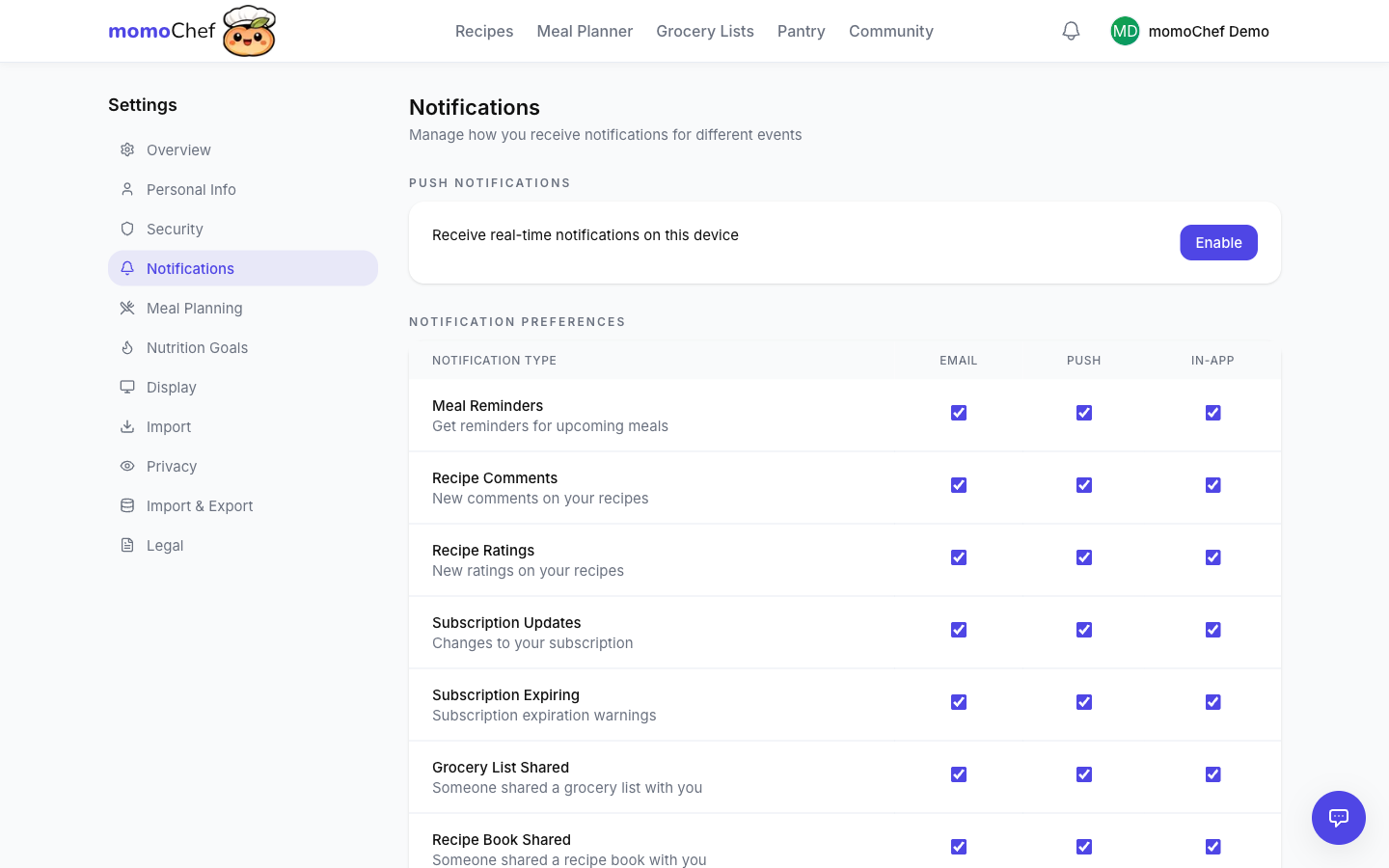
Notification Preferences
Control how and when momoChef notifies you about activity and updates.
Notification Types
Manage notifications for:
- Community: New followers, recipe comments, likes
- Messages: Direct messages and group chats
- Shared Content: Updates to shared recipe books
- Meal Planning: Daily meal reminders
- Grocery Lists: Updates to shared lists
- Account: Security alerts, billing reminders
- Newsletter: Weekly recipe highlights and tips
Notification Channels
Choose how to receive notifications:
- In-App: Notifications within momoChef
- Email: Email notifications
- Push: Browser or mobile push notifications
Customizing Preferences
- Go to Settings > Notifications
- Toggle each notification type on or off
- Choose which channels to use for each type
- Set quiet hours to pause notifications
Email Frequency
For email notifications, choose:
- Instant: Receive emails immediately
- Daily Digest: Bundle into one daily email
- Weekly Digest: Bundle into one weekly email
- Off: No email notifications
Data Export
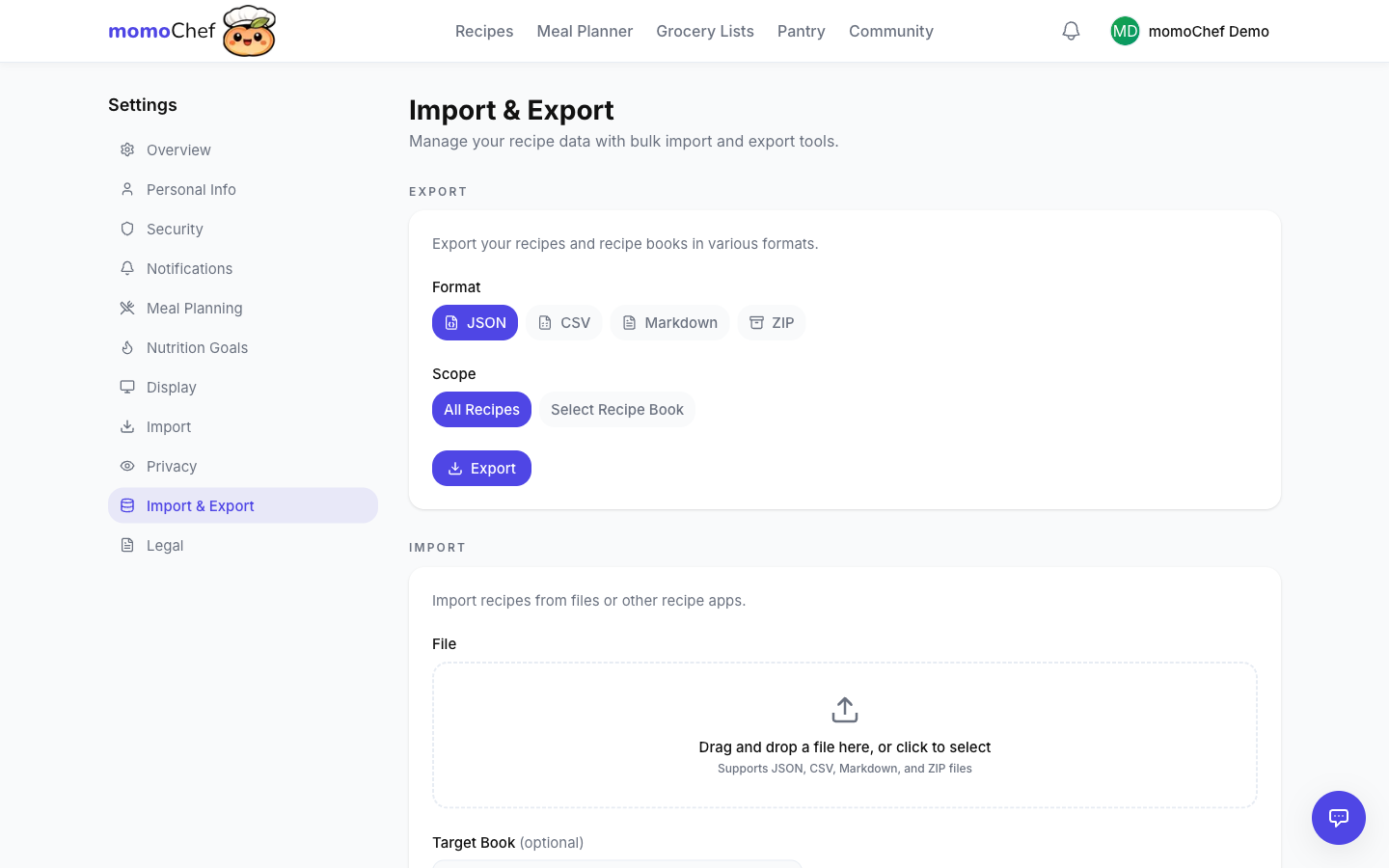
Download all your data from momoChef at any time. Your data belongs to you.
What's Included
Your export includes:
- All recipes (yours and saved from community)
- Recipe books and organization
- Meal plans
- Grocery lists
- Photos and images
- Profile information
Export Formats
- JSON: Structured data for importing into other apps
- ZIP: Complete archive with images
- PDF: Printable recipe collection
Requesting an Export
- Go to Settings > Data & Privacy
- Click Export Your Data
- Select what to include
- Choose your format
- Click Request Export
- You'll receive an email when your export is ready (usually within 24 hours)
Importing Elsewhere
The JSON export is compatible with:
- Paprika Recipe Manager
- CopyMeThat
- RecipeSage
- Most recipe apps that support JSON import
Account Deletion
Permanently delete your account and all associated data.
Before You Delete
Consider these alternatives:
- Export your data: Download your recipes before deleting
- Cancel subscription: You can cancel Premium without deleting your account
- Take a break: You can simply stop using the account; your data will be preserved
What Happens When You Delete
- All your recipes are permanently deleted
- Your profile is removed from the community
- Shared recipe books you created are deleted (others' copies remain)
- Your subscription is canceled
- All data is removed from our servers within 30 days
Deleting Your Account
- Go to Settings > Data & Privacy
- Scroll to Delete Account
- Click Delete My Account
- Enter your password to confirm
- Click Permanently Delete
Warning: Account deletion is permanent and cannot be undone. Make sure to export any recipes you want to keep before deleting.
Connected Accounts
Manage third-party accounts connected to momoChef.
Available Integrations
- Google: For sign-in and calendar sync
- Apple: For Sign in with Apple
- Facebook: For social sharing
Managing Connections
- Go to Settings > Connected Accounts
- See all connected services
- Click Disconnect to remove a connection
Reconnecting
If you disconnect a sign-in method:
- Make sure you have another way to log in (password or other connected account)
- You can reconnect anytime from the same settings page
Preferences
Customize your momoChef experience with personal preferences.
Display Settings
- Theme: Light, dark, or system default
- Language: Interface language
- Time Zone: For meal reminders and calendar
Recipe Defaults
- Unit System: Metric or Imperial
- Default Servings: Standard serving size for new recipes
- Temperature Unit: Fahrenheit or Celsius
Dietary Preferences
Set dietary preferences to improve recipe suggestions:
- Vegetarian, Vegan, Pescatarian
- Gluten-Free, Dairy-Free, Nut-Free
- Keto, Low-Carb, Whole30
- Custom restrictions and allergies
Privacy Settings
- Profile Visibility: Public or private
- Activity Sharing: Share what you cook
- Discovery: Allow others to find you by email
Related Topics
- Getting Started - New to momoChef? Start here
- FAQ - Common questions answered
- Contact Support - Get help with account issues