

iOS Cooking Mode
Last updated: 2026-08-19
Cooking mode transforms your recipe into an easy-to-follow, hands-free cooking experience. View one step at a time, set timers, and keep your screen awake while you cook.
Starting Cooking Mode
You can start cooking mode from any recipe in your collection:
From Recipe Detail View
- Open any recipe from your collection
- Tap the Cook button (chef hat icon) in the navigation bar
- Cooking mode opens in full-screen view
From Meal Plan
- Go to the Meal Plan tab
- Tap on a scheduled meal
- Select Start Cooking from the quick actions
From Community Recipe
- Find a recipe in the Community tab
- Open the recipe details
- Tap Cook to start cooking mode
- You can cook community recipes without adding them to your collection
Tip: Your screen will stay awake while in cooking mode, so you don't need to keep unlocking your phone with messy hands.
Step-by-Step View
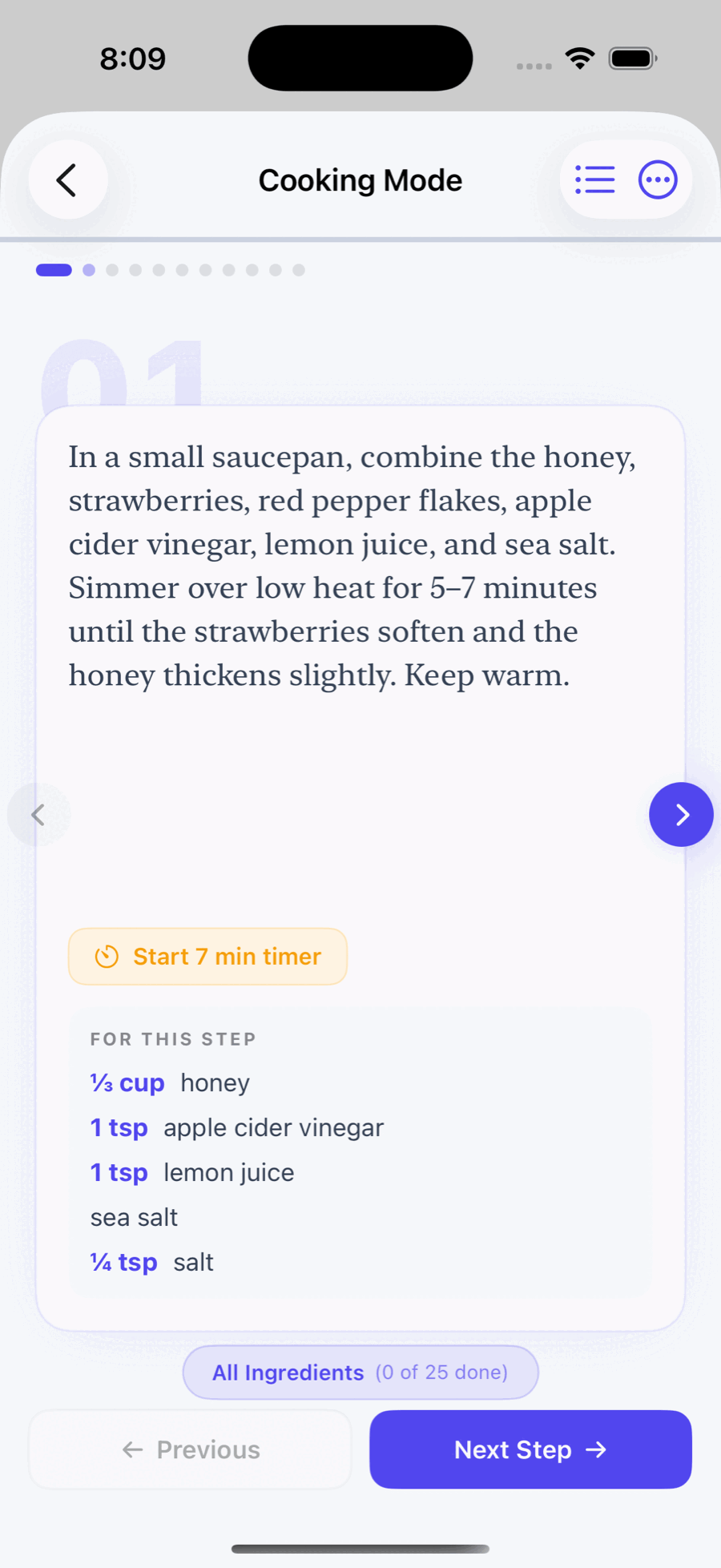
Cooking mode displays one instruction at a time, making it easy to focus on the current task.
Navigating Steps
- Swipe left/right: Move between steps
- Tap left/right edges: Navigate to previous/next step
- Step counter: Shows current step and total (e.g., "3 of 8")
- Progress bar: Visual indicator of your progress through the recipe
Ingredient Panel
The ingredient list is always accessible:
- Tap the Ingredients button to see the full list
- Tap ingredients to check them off as you gather or use them
- Checked ingredients are dimmed to show what's been used
- Ingredient quantities adjust based on your serving size selection
Adjusting Servings
Scale recipe quantities on the fly:
- Tap the servings indicator at the top of the screen
- Use the stepper or enter a new serving count
- All ingredient quantities update automatically
Cooking Timers
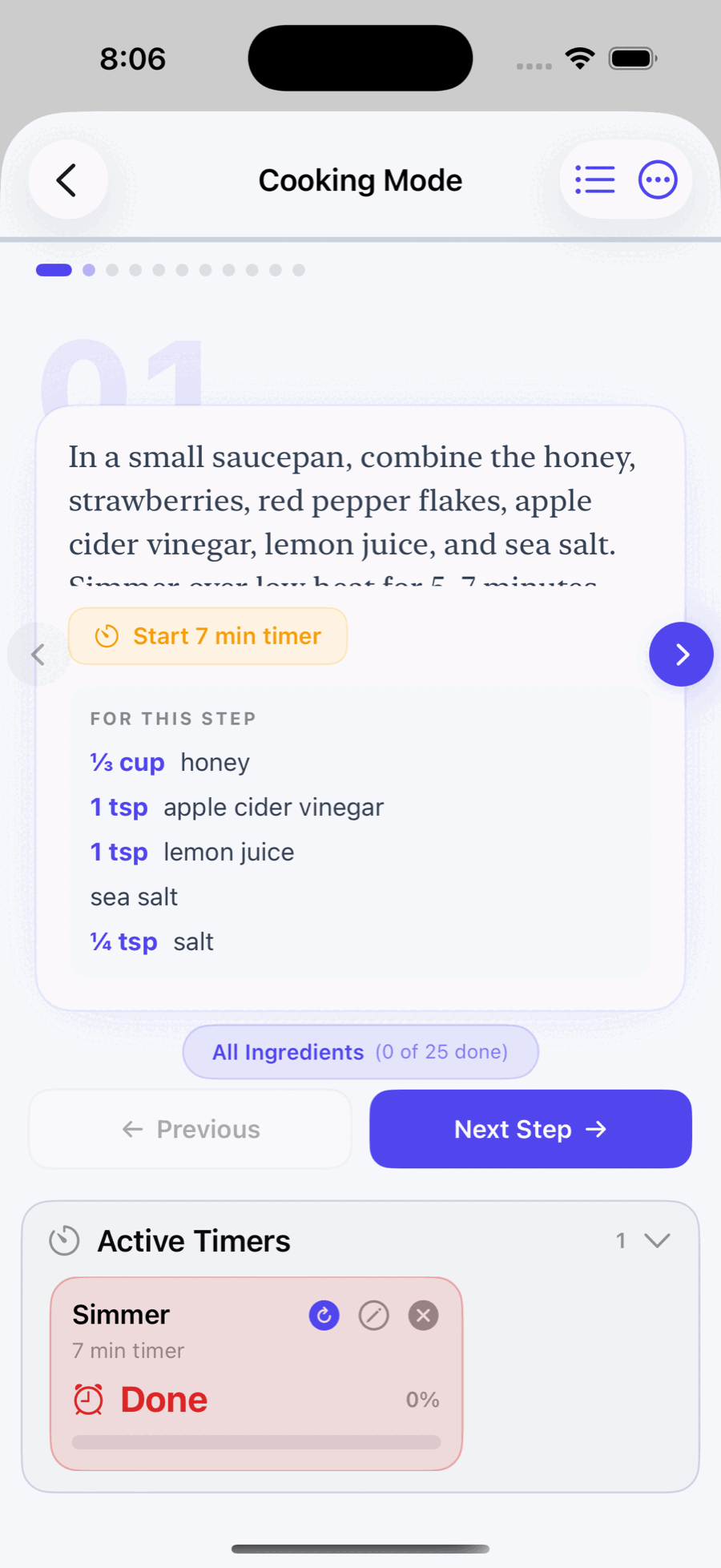
Set timers directly from cooking mode. Timers are detected automatically from recipe instructions containing time references.
Automatic Timer Detection
When a recipe step mentions a time (e.g., "Bake for 25 minutes"), cooking mode highlights it as a tappable timer link.
- Tap any highlighted time in the instruction
- A timer starts automatically with that duration
- The timer label matches the instruction context
Manual Timers
You can also create custom timers:
- Tap the Timer icon in the toolbar
- Enter a name for your timer (e.g., "Pasta water")
- Set the duration using hours and minutes pickers
- Tap Start to begin the countdown
Managing Active Timers
- View all timers: Tap the timer icon to see active timers
- Pause/Resume: Tap the pause button on any timer
- Cancel: Swipe left on a timer to delete it
- Timer alerts: You'll receive a notification when a timer completes
Native vs. In-App Timers
Choose how timers behave in Settings:
- In-App Timers: Timers run within momoChef (default)
- Native Timers: Timers are added to the iOS Clock app
Native timers continue running even if you close the app, but in-app timers offer a more integrated experience.
Tip: Native timers are great for long cooking times like slow cooker recipes, while in-app timers are perfect for multiple short timers.
Hands-Free Options
Cooking mode is designed for messy hands in the kitchen.
Keep Screen Awake
By default, your screen stays on while in cooking mode. This setting can be toggled:
- Open Settings in momoChef
- Find Cooking Mode preferences
- Toggle Keep Screen Awake
Large Text
Instructions are displayed in large, easy-to-read text. The font size respects your iOS Dynamic Type settings for accessibility.
High Contrast Mode
For better visibility in bright kitchens:
- In cooking mode, tap the Settings icon
- Enable High Contrast
- Text and controls use higher contrast colors
Cooking Sessions
Cooking sessions let you save your progress and resume later, or share a live cooking session with family members.
Saving Progress
Your cooking progress is automatically saved:
- Current step position
- Checked ingredients and steps
- Active timers
- Serving size adjustments
If you exit cooking mode, you can resume where you left off when you return.
Session Switcher
If you're cooking multiple recipes simultaneously:
- Tap the Session button in the toolbar
- See all active cooking sessions
- Switch between recipes quickly
Shared Cooking Sessions (Premium)
Invite family members to join your cooking session:
- Everyone sees the same step in real-time
- Timers are shared across all participants
- Great for cooking together in different locations
- Invite via QR code or direct link
Quick Actions
Access these helpful features from the cooking mode toolbar:
Jump to Step
Quickly navigate to any step in the recipe:
- Tap the step counter (e.g., "3 of 12")
- Select the step you want to jump to
View Full Recipe
See the complete recipe with all ingredients and steps:
- Tap the Recipe button
- Scroll through the full recipe view
- Tap Back to return to cooking mode
Share Recipe
Share the recipe while cooking:
- Tap the Share icon
- Choose how to share (Messages, Mail, etc.)
Rate After Cooking
When you complete a recipe, you'll be prompted to:
- Rate the recipe (1–5 stars)
- Add notes for next time
- Share your cooking with the community
Cooking Mode Settings
Customize cooking mode in the app settings:
Available Options
- Keep Screen Awake: Prevent screen from turning off (default: on)
- Highlight Timers: Automatically detect and highlight time references (default: on)
- Use Native Timers: Add timers to iOS Clock app instead of in-app (default: off)
- Auto-Start Timers from Links: Start timers when tapping highlighted times (default: on)
- High Contrast Mode: Use higher contrast colors for visibility
Accessing Settings
- Go to the Settings tab
- Scroll to Cooking Preferences
- Adjust options as needed
iPad Optimizations
On iPad, cooking mode takes advantage of the larger screen:
Split View Layout
- On landscape iPads, see ingredients and steps side by side
- Ingredients list remains visible on the left
- Current step displays prominently on the right
Kitchen Stand Mode
Perfect for propped-up iPad cooking:
- Large touch targets for easy tapping
- Optimized for viewing from a distance
- Works great with iPad stands and cases
Troubleshooting
Screen Turns Off During Cooking
If your screen is turning off:
- Check that Keep Screen Awake is enabled in settings
- Make sure Low Power Mode isn't overriding the setting
- Some older devices may have limitations
Timers Not Working
If timers aren't alerting you:
- Check that notifications are enabled for momoChef in iOS Settings
- Verify Do Not Disturb isn't blocking alerts
- Try using native timers as an alternative
Cooking Session Not Syncing
For shared cooking session issues:
- Ensure all participants have stable internet connections
- Check that you're using the latest version of the app
- Try leaving and rejoining the session
For more help, see our Troubleshooting Guide.